It doesn’t mean I doubt that macOS developers are doing a great job (You may throw stones at me but it’s true for the Windows team as well.). I’m simply trying to say that security depends on a user’s wariness just as much as it does on the system’s default built-in mechanisms.
Let’s look at some major weaknesses that may put a Mac owner into big trouble. Then make sure that you’re already following the recommendations I list. I think you’ve heard about most of those, but were you listening carefully enough?
Security weaknesses
Security vulnerabilities are constantly being found in any product that is somehow attractive to hackers. Of course, it concerns any widespread platforms and operating systems, and macOS is naturally not an exclusion. If you’re still unsure, here are some statistics on vulnerabilities in macOS.
In 2021, there were 315 vulnerabilities detected with 143 of those allowing remote code execution meaning that an attacker gets the opportunity to do anything with the affected device. Though other types of attacks are also dangerous, each of the weaknesses listed is a possible way to hack your MacBook. Still, these vulnerabilities in the OS are only one kind of thread.
Build-in features’ configuration
macOS has a number of useful built-in features that may need reconsidering. Especially if you have set them once to come back to work as fast as possible, and delayed proper configuration for the right moment in the future. As a rule, such moments never come. And if you still allow remote connection to your device, you need to remember that an intruder can exploit this (generally useful) feature when your credentials are leaked. Think it over and decide if the possible convenience overbalances the risks.
Other doubtful security configurations include:
- No password on the device. Most companies will require a password on any device used for work and they do that not out of spite. If someone can access it, be sure one day this will be used for harmful actions.
- No automatic lock after some inactivity time. It’s the same as the point above. Do you always switch your laptop off when you finish or interrupt your work?
- No hard drive encryption. If someone steals your Mac, they will be able to obtain all the information stored on your device, even the data you have entirely forgotten about.
- No remote device wipe enabled. If you lose your Mac, or someone steals it (technically absolutely the same), you won’t simply lose your data – you will give it over to an intruder. And there will be no way to protect the information which was quite easy to perform if you have been prepared.
Software risks
Vulnerabilities in software can be used to hack your device just as successfully as those in your operation system. Using those, intruders can get access to your confidential information or steal your money. And in this case, there’s no difference if you’re using macOS or Windows.
For example, this critical vulnerability in Google Chrome is exploited in the wild and allows remote code execution. The latter can be rephrased as it can be used to take complete control over your device, steal passwords, erase information, blackmail, or tease you.
Malware risk
Malware for Mac is just as common as that for Windows or Android devices. We can presume that the percentage of malware among the total number of programs produced for a particular system is comparable. So, if you don’t feel the lack of applications for your device, the software written specially to steal your information is always around.
As we all know, human engineering is the key area for criminals aiming at our data. Should one believe he’s better, smarter, and more careful because he’s bought quite an expensive device? Sounds like a slippery path. Applications downloaded from untrusted sources, infected files opened in a phishing email, or connections to infected devices can easily end with the loss of the information on your Mac device. The consequences of infection can be different: from annoying adware to full remote control and data encryption.
9 Simple Actions to Protect Your Device
1. Keep your macOS and software up-to-date
It is one of the most significant ways to maintain a certain level of security. Cybercriminals target outdated software because they know its vulnerabilities and have enough time to think of how to exploit their knowledge.
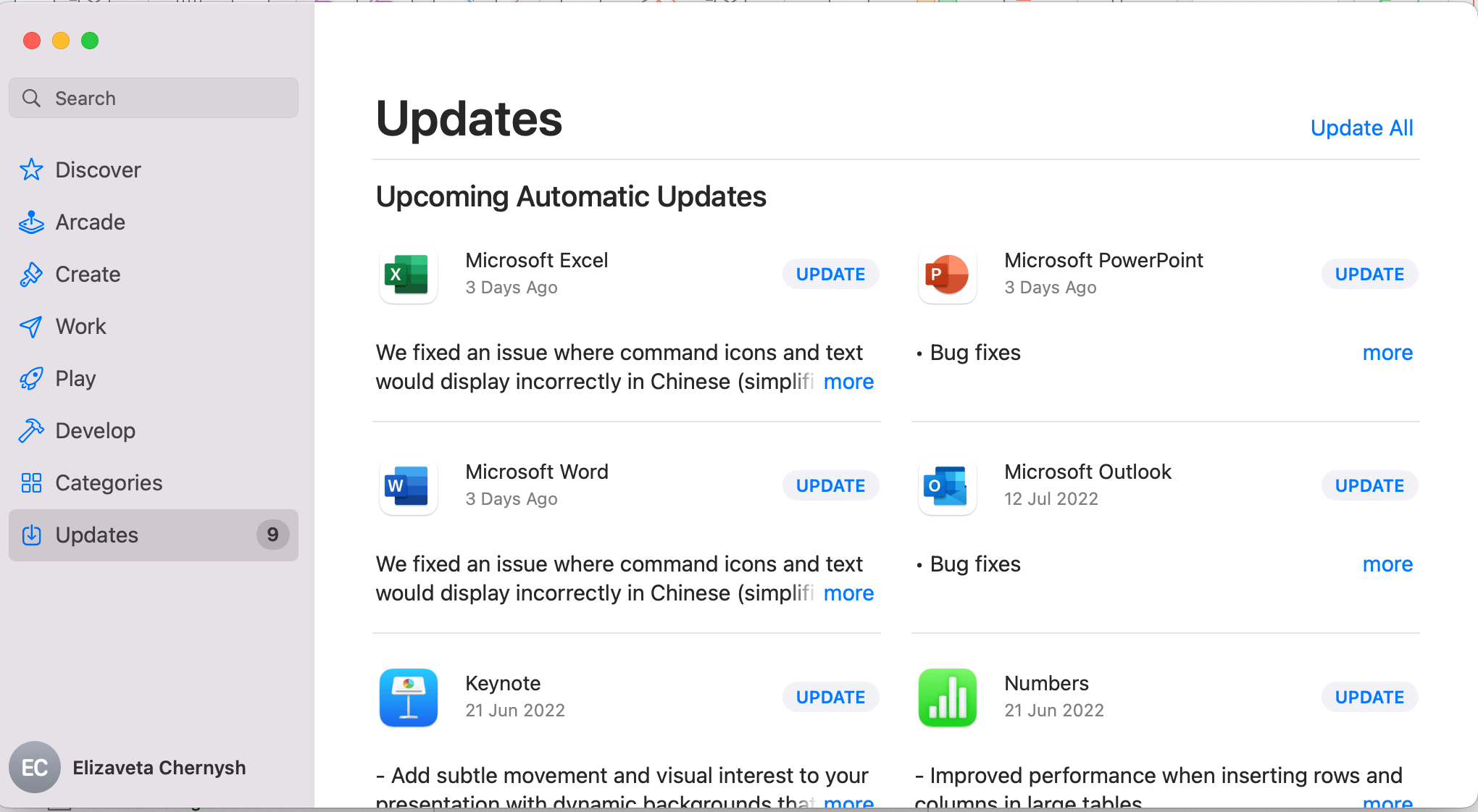
Take a look at the system update instructions. But before you go, try to remember when was the last time you checked for the updates. If you have already switched-on automatic updating, make sure you’ve done it not only for the system but for the software too.
To update software downloaded from the App store follow the guide.
2. Disable remote access to your Mac
Well, it is a helpful feature of macOS that lets you access files on your computer from anywhere. However, it also allows anyone with your administrator login and password to do the very same thing. It’s a good idea to shut this feature off if you don’t really use it.
3. Use a password manager to store your passwords
It is important to have a strong password for every service you use. Of course, if you invent a unique one (which is also crucial!) every time you register, it is impossible to remember all your credentials. The best decision is to use a password manager for secure storage. Mac has the Keyсhain app built-in for that. However, there're numerous alternative solutions.
4. Encrypt your Hard Drive
Simply turn on the FileVault. It will prevent serious trouble in case of stealing/losing your Mac device.
5. Use Antivirus
Sure, macOS has built-in antivirus protection. However, as you can guess some malware was explicitly developed to bypass it. That’s why I would suggest installing an additional security level. Top antiviruses for Mac can be found here.
6. Setup two-factor authentication for Apple ID
Brush your teeth, use seatbelts, and don’t ignore two-factor authentication. It’s easy to turn it on.
7. Setup automatic lock with password after some inactivity time
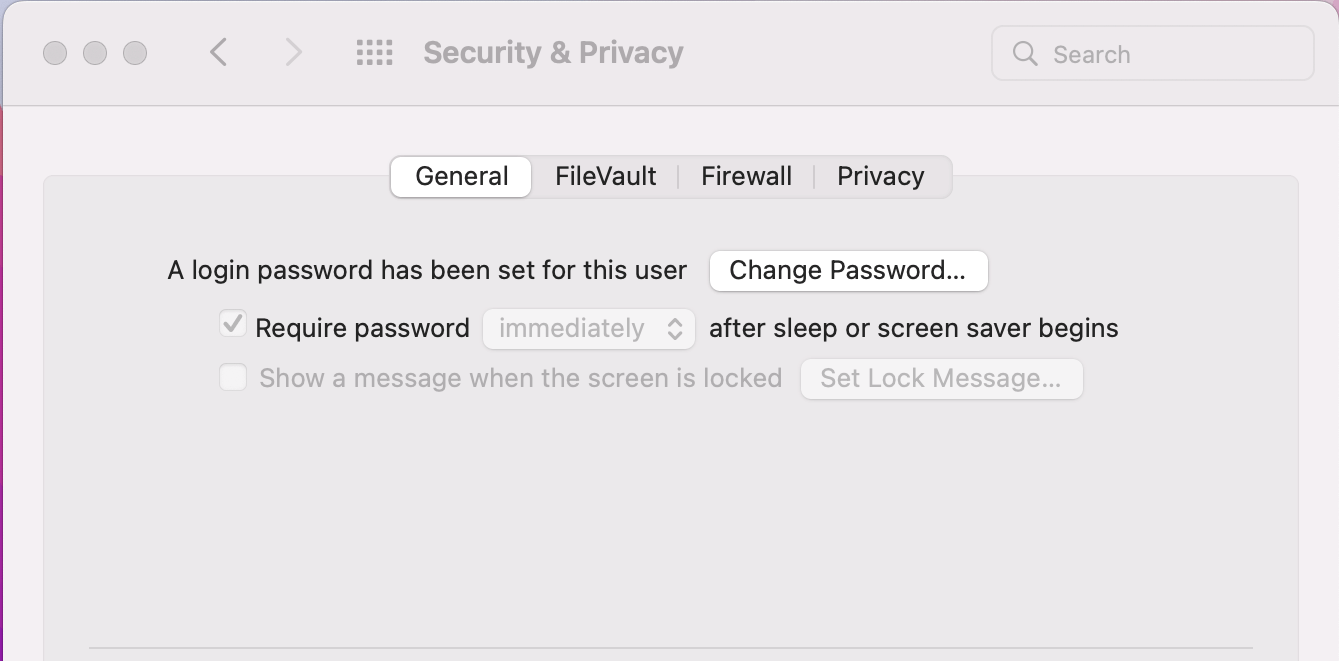
Don’t wait until your system administrators ask you about that. Don’t make anyone responsible for a security check cry. And take care of yourself.
8. Download applications only from trusted sources
Use App Store and official vendors’ stores. Are you sure they lack what you need? Is the deal suggested aside worth the risk?
9. Use Find My and remote wipe
Make sure that both functions are enabled following the instructions.